 grabcad
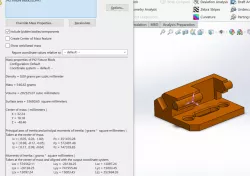
Fixture Block
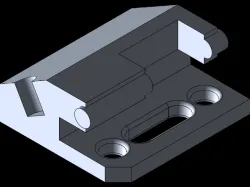
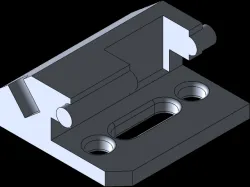
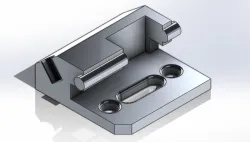
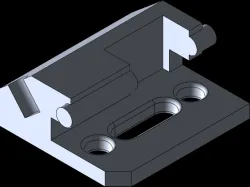
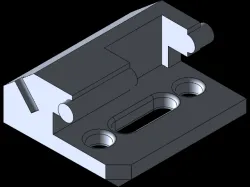
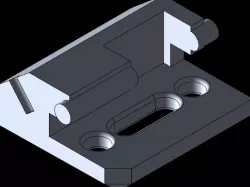
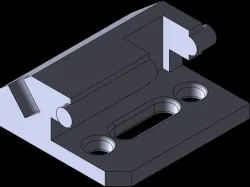
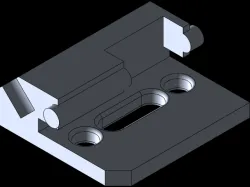
Step1 - setting our material to 1060 Alloy metal Step2 - Start sketching out outline on the front planeStep3 - Setting up our dimensions with the start dimension tool Step4 - Extrude our base and flip it the other direction Step5 - Move to the front plane to sketch on our base Step6 - use the circle tool on the top edge of our base and defining it Step 7 - Extrude the circle Step 8 - start a sketch on top of the Fixture block Step 9 - Sketched and defined a circle on the side of the block and extrude cut Step 10 - Sketch a rectangle on the middle part of the block Step 11 - Define the rectangle and extrude cut to the surface to the bottom of the block Step12 - Sketch 2 circles and a slot on the base. Step13 - Define the sketches and extrude cut through all Step 14 - Fillet the cutsStep 15 - Chamfer the corn of the base
Direct link to the original creator's page
Also Available On
More from gonzalez


Similar Models
Model Specifications
Frequently Asked Questions
How do I download Fixture Block?
Click the "View on grabcad" button above to visit the original model page on grabcad. You can download the STL file directly from the creator's page for free.
What 3D printer can I use for this model?
This STL file is compatible with most FDM 3D printers (Creality Ender 3, Prusa MK3S+, Bambu Lab, etc.) and resin printers (Elegoo, Anycubic). Check the original page for recommended print settings and materials.
Is this 3D model free to download?
Yes, this model is available as a free download on grabcad. Some creators accept tips or donations.
Can I modify this STL file?
Most STL files can be modified using free software like Blender, TinkerCAD, or Meshmixer. Check the license on the original grabcad page to see if modifications are permitted by the creator.