 grabcad
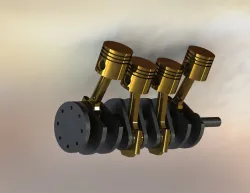
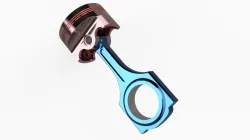
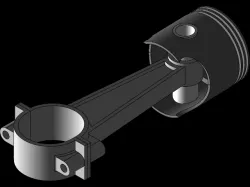
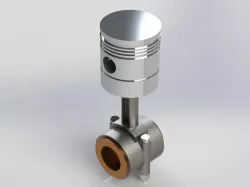
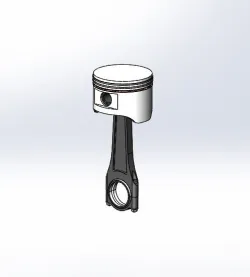
Piston assembly
Creating a piston assembly in SOLIDWORKS involves a series of steps to model the individual components, assemble them, and potentially animate their motion. Below is a general guide on how to create a basic piston assembly:Create the Cylinder:Start by creating the main cylinder body that represents the cylinder bore. You can use the "Extrude" feature to create a cylinder shape.Create the Piston Head:Create a new sketch on a plane perpendicular to the cylinder's axis.Draw the piston head's profile (usually circular) using sketch tools like circles and lines.Use the "Extrude" feature to give the profile thickness and create the piston head.Create the Piston Rod:Sketch the piston rod profile on a plane perpendicular to the cylinder's axis.Use the "Extrude" feature to create the piston rod.Mate the piston rod to the piston head, ensuring concentricity and proper positioning.Create the Connecting Rod:Sketch the connecting rod profile on a plane perpendicular to the piston rod's axis.Use the "Extrude" feature to create the connecting rod.Mate the connecting rod to the piston rod, providing a pin joint or other appropriate mate.Create the Crankshaft (if needed):Sketch the crankshaft's profile on a plane perpendicular to its axis.Use the "Extrude" feature to create the crankshaft.Mate the crankshaft to the connecting rod or other components as necessary.Assemble the Components:Use mates (such as coincident, concentric, and coincident) to assemble the piston, piston rod, connecting rod, and any other components.Make sure the components are properly aligned and constrained to simulate real-world motion.Create Exploded View (Optional):If you want to showcase how the components come together, create an exploded view as described in the previous response.Animate the Piston Motion (Optional):If you wish to animate the piston's movement within the cylinder, you can follow the steps provided earlier for creating a motion study.Validate and Refine:Review the assembly, check for interferences, and ensure that the motion (if applicable) is realistic and accurate.Render and Document:Use SOLIDWORKS' rendering capabilities to create realistic images or animations of your piston assembly.If needed, create engineering drawings that document the assembly's dimensions and specifications.Remember that the steps provided are a general guideline. The specific details and settings might vary depending on your specific design and version of SOLI
Direct link to the original creator's page
Also Available On
More from raju




Similar Models


Model Specifications
Frequently Asked Questions
How do I download Piston assembly?
Click the "View on grabcad" button above to visit the original model page on grabcad. You can download the STL file directly from the creator's page for free.
What 3D printer can I use for this model?
This STL file is compatible with most FDM 3D printers (Creality Ender 3, Prusa MK3S+, Bambu Lab, etc.) and resin printers (Elegoo, Anycubic). Check the original page for recommended print settings and materials.
Is this 3D model free to download?
Yes, this model is available as a free download on grabcad. Some creators accept tips or donations.
Can I modify this STL file?
Most STL files can be modified using free software like Blender, TinkerCAD, or Meshmixer. Check the license on the original grabcad page to see if modifications are permitted by the creator.